
Introduction and the Short Answer
A sending domain is the domain or subdomain your emails are sent from and authenticated under. Connecting it means making the DNS records that identify it visible to the internet so HighLevel can confirm them.
This guide covers email sending domains only. It does not cover connecting a website, funnel, white-label or client-portal domain, which HighLevel handles with different records (Connecting Your Domain on GHL). It also assumes you have already chosen LC Email as your sending service. If you are still deciding how to set up email overall, start with (Planned link, not yet published: the complete GoHighLevel email setup checklist).
You will: prepare, choose the domain, find the settings, pick automatic or manual configuration, add the records, verify, and learn what a verified status does and does not mean.
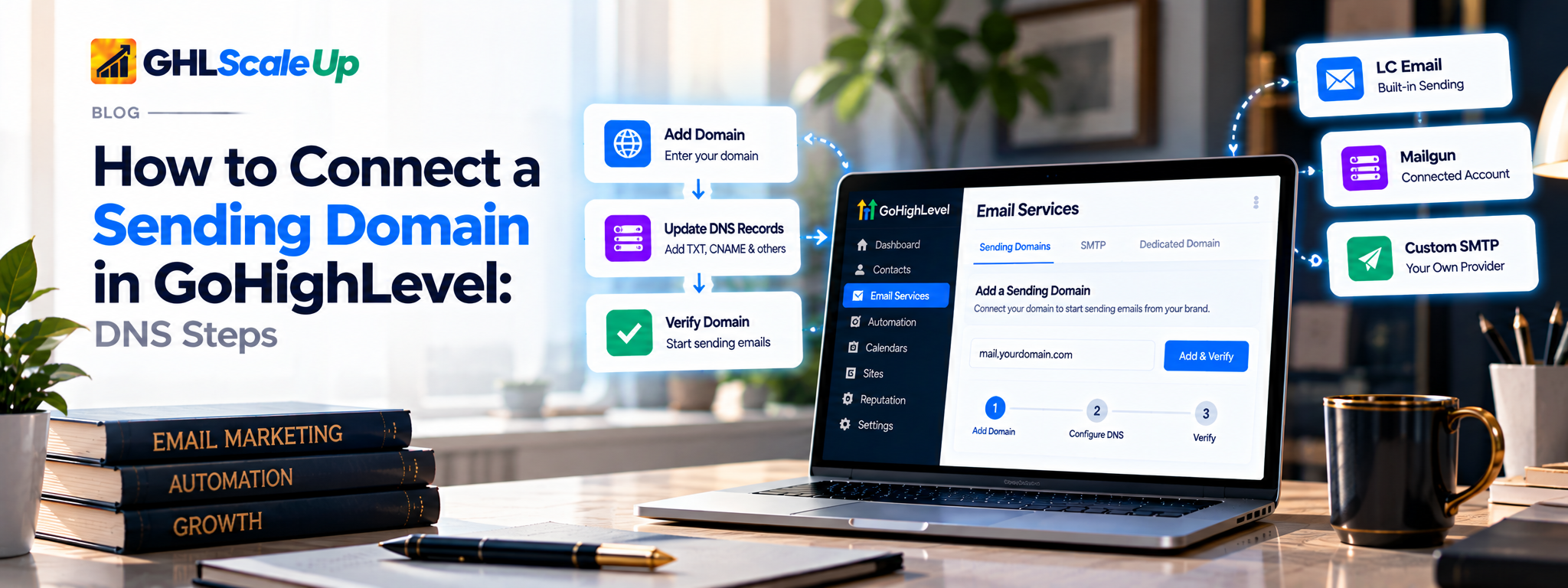
Sending Domain or Website Domain? Why They Are Not the Same
Three different domains can be involved, and mixing them up is a common source of confusion:
| Website or funnel domain | Sending domain | Domain in the From address | |
|---|---|---|---|
| What it does | Shows your pages to visitors | Identifies where email is sent from and lets receiving systems check it | Shows recipients who the email is from |
| Where you connect it in HighLevel | Domain settings for sites and funnels | Settings > Email Services > Dedicated Domain and IP | Sender details (Set Headers), after the sending domain is verified |
| Records HighLevel describes | A and CNAME records | Email records: TXT for authentication, plus the others on your screen | None; it must fit the sending domain |
They do not have to be identical. A business can have a website at its main domain, send from a subdomain, and use a From address that sits on that subdomain. HighLevel's header page says the From Email "should sit on" the validated dedicated sending domain so the email stays authenticated (Default Headers for Dedicated Sending Domains). HighLevel also notes that dedicated sending domains apply only to LC Email accounts (Dedicated Email Sending Domains Overview & Setup).
Before You Connect the Domain
| Have this ready | Status | Why |
|---|---|---|
| The sub-account that will send | Required | The dedicated domain is added to the sub-account, per HighLevel's pages. |
| LC Email as the sending service | Required for this guide | Dedicated sending domains apply only to LC Email accounts. |
| Access to your DNS provider, or the person who manages it | Required | HighLevel gives you records; they have to be published where the domain's DNS is managed. If you don't have access, HighLevel says to share the record values with your web developer, IT team or registrar. |
| A subdomain no other service uses | Required in practice | See the next section. |
| A list of what email already runs on the domain | Strongly advised | Existing mail records can conflict with new ones. Know what exists before you add anything. |
| The DNS records screen in HighLevel | Required | The records appear after you add the domain. Keep the screen open while you work. |
| One person who will make and check the changes | Recommended | Records pass between owners, administrators and contractors easily; one named owner prevents half-finished work. |
Registrar or DNS provider? The registrar is where the domain name was bought. The DNS provider is the service that currently hosts the domain's records, and it can be the same company or a different one (a hosting company or a service such as Cloudflare). The records have to go to the DNS provider. If you aren't sure which it is, ask whoever set up your website, or check the domain's nameserver settings at the registrar.
Choose the Domain or Subdomain to Connect
HighLevel's guidance is to use a unique subdomain that isn't used for any other purpose, with examples such as one starting with mg. (overview). The Add and Verify page recommends a subdomain too (Add and Verify Domain DNS Records). Its examples elsewhere start with lc. or mail.
A subdomain keeps the new email records separate from anything already running on your main domain. That matters most when your main domain's mailboxes are hosted somewhere else. HighLevel's pages warn that existing SPF or MX records can block setup and that the MX records used here conflict with Google Workspace's MX records on a main domain. For those cases they say to use a subdomain (Manually Adding DNS Records).
Safety rule: don't delete or change existing email records to make room for the new ones. One HighLevel page suggests removing existing MX or SPF records when it shows an error that the domain already points to an email server. Don't do that on a domain that still sends or receives real mail. Choose a fresh subdomain, or ask the person who manages your email what depends on those records first.
Find the Sending-Domain Settings in GoHighLevel
According to HighLevel's Getting Started page and its domain guides, the path is Settings > Email Services > Dedicated Domain and IP, in the sub-account (Getting Started). The page that describes adding the domain then says to click + Add Domain at the top right, enter the domain or subdomain, and click Add & Verify.
Different HighLevel pages label the same area slightly differently (for example "Dedicated Domain", or "SMTP Service > Dedicated Domain and IP"). If your account doesn't match exactly, look for the dedicated-domain area under Email Services. If you can't find it, check you are in the sub-account, not the agency view, and that the sub-account uses LC Email.
Automatic or Manual DNS Configuration?
After you add the domain, HighLevel may offer to configure the records for you. Which route you use depends on your DNS provider.
| Automatic | Manual | |
|---|---|---|
| How it works | After adding the domain, you click Continue. HighLevel detects your DNS provider, and you log in and authorize Lead Connector (HighLevel's name in the page) to configure the records. If the provider isn't supported, you are prompted to add records manually | You copy each record from the DNS records screen into your DNS provider's dashboard, then return to HighLevel to verify |
| Access needed | Login to your DNS provider with permission to authorize changes | Permission to add and edit records, or an administrator who has it |
| Who makes the changes | You, or whoever can authorize at the DNS provider | You, or your administrator or contractor |
| What to check afterward | The domain's status in HighLevel, and the DNS records at your provider so nothing unexpected changed | That each record matches exactly, then the status in HighLevel |
HighLevel's page names Cloudflare, GoDaddy and Namecheap as providers it detects, but only as examples, and HighLevel's own GoDaddy, Google and Siteground guides describe manual entry only. Don't assume your provider supports the automatic route. Add the domain, see what HighLevel offers, and fall back to manual if it doesn't. Authorizing the automatic route lets HighLevel change DNS records at that provider, so only authorize if you're entitled to, and review the records afterward.
Add the DNS Records HighLevel Gives You
If you chose the manual route, or HighLevel prompted you for it, work through these steps. Every value comes from your own HighLevel screen. Don't copy values from a tutorial, including this one.
Open the records screen in HighLevel. After Add & Verify, HighLevel shows the DNS records for this domain with a Copy button. Keep it open.
Identify your DNS provider (see the registrar note above), and sign in to it, or send the values to the person who can.
Open the DNS zone for the right domain. Records for a subdomain such as a sending subdomain are normally added in the zone of your main domain. Make sure you are in the zone for the domain you actually own, not a similar one.
Add one record at a time. For each record on the HighLevel screen, create a record at your DNS provider with the same Type (TXT, MX or CNAME), the same Name or Host, and the same Value. Copy values exactly and watch for stray spaces. If the provider asks for an MX priority and HighLevel's screen doesn't show one, confirm it with HighLevel support, as HighLevel's provider guides use a specific number you shouldn't guess.
Set the TTL if your provider asks. HighLevel's Add and Verify page suggests 5 minutes (300 seconds) where possible. It's a recommendation, and it only affects how quickly changes are picked up.
Save. Some providers save each record as you add it. Others expect one save at the end. Follow your provider's behavior, and make sure all records are saved before verifying.
Go back to HighLevel and compare the list on screen with what you entered before you click verify.
The Host or Name Field: The Most Common Slip
HighLevel's manual-records page says to enter only the prefix shown, not the root domain. For a record named replies.companyname.com, you would enter only replies. Entering the whole name can produce a doubled hostname (replies.companyname.com.companyname.com), which fails. For a root domain, HighLevel's page uses @.
Providers differ. Many append your domain automatically, which causes the doubling, but some display the full name. Check how your provider shows an existing record, and match its format. HighLevel's GoDaddy, Google and Siteground guides each describe how that provider handles the field.
The Records You Will Probably See
HighLevel's pages don't all agree on the list. The manual-records page and the Google, GoDaddy and Siteground guides describe five records. The Add and Verify page lists SPF, DKIM, CNAME, MX and DMARC. Add the records your own screen lists. Don't add or skip records based on a generic list.
| Record type | What HighLevel's pages say | What to do |
|---|---|---|
| TXT (SPF) | Lists which servers may send mail for the domain | Copy exactly. Only one SPF record should exist per domain; don't create a second. If one already exists, stop and get advice. Detail: (Planned link, not yet published: how SPF and DKIM work and how to verify email authentication) |
| TXT (DKIM) | A digital signature that shows mail wasn't altered in transit. The name is specific to your setup | Copy name and value exactly. Multiple DKIM records on the same domain aren't supported. |
| MX (two) | HighLevel's pages give no purpose; the manual-records page names Mailgun mail servers as the targets | Copy as shown. On a main domain that already uses Google Workspace, these conflict with its MX records, so use a subdomain. |
| CNAME | HighLevel's authentication page says it supports tracking links | Copy name and value exactly. If you use Cloudflare, set it to DNS only. |
| TXT (DMARC), if listed | Tells receiving systems what to do with mail that fails authentication, and where to send reports | Only one per domain. A DMARC record at the root also applies to subdomains by default, per HighLevel. Don't add a policy you don't understand. See (Planned link, not yet published: how SPF and DKIM work and how to verify email authentication) |
This article doesn't explain how these authentication records work. (Planned link, not yet published: how SPF and DKIM work and how to verify email authentication) does.
Verify the Domain and Read the Status
Wait a short while after saving, then return to HighLevel. HighLevel's manual-records page suggests waiting 15 to 30 minutes if a record shows a red mark before trying again.
Start verification. HighLevel's Add and Verify page says to open the three-dot menu next to the domain and click Verify domain. Other pages call it Verify Records, Verify Domain or Verify DNS Settings. Look for the verify action in your account.
Read the list. HighLevel shows each required record with its own status. The domain is marked verified once all records pass, and the Add and Verify page describes the final state as "Verified / Active".
If you used the automatic route, the domain is marked Verified when it completes. Review the DNS provider's records anyway.
How long it takes varies. HighLevel's Add and Verify page says verification typically completes within 1 to 10 minutes but that propagation can take 24 to 48 hours, depending on the TTL. The manual-records page says Cloudflare and Siteground often apply changes within minutes, while GoDaddy and Namecheap can take 30 minutes to 48 hours. The overview says up to 24 hours. These are estimates from HighLevel's pages, not promises.
What Happens After the Domain Verifies
- SSL. HighLevel says an SSL certificate is issued automatically when a dedicated domain is verified, usually within a few minutes. It secures tracking, open, click and unsubscribe links. If it's missing, re-running verification triggers issuance (SSL Certificates for Dedicated LC Email Domains).
- Sender details. In the same dedicated domain area, find the domain and use Set Headers to enter a From Name and From Email, then save. HighLevel says the saved header overrides the From Name and From Email on campaigns and workflows sent through that domain, and the From Email should sit on this domain (Default Headers).
- Which emails use the domain. If you have more than one dedicated domain, HighLevel lets you assign domains to different email types and set a default. It recommends setting a default before launching campaigns (Assigning Dedicated Sending Domains).
What a Verified Sending Domain Means
A verified status is useful, but it's one step in a longer chain. These outcomes are related and different:
| Stage | What it means | Does it prove the next stage? |
|---|---|---|
| Records published | They exist at your DNS provider | No. HighLevel may not see them yet, or they may be wrong |
| Recognized by HighLevel | The domain is marked verified | No. It doesn't show that your messages pass authentication |
| Authentication passes | Receiving systems can check the sender against your records | No. HighLevel's authentication page says authentication doesn't guarantee inbox placement |
| Accepted by the receiving server | The message wasn't rejected | No. It can still be filtered |
| Reaches the inbox | The recipient sees it | Depends on reputation, content and recipients |
HighLevel's Add and Verify page recommends sending test emails afterward and checking that SPF and DKIM pass in the headers. How to do that check is in (Planned link, not yet published: how SPF and DKIM work and how to verify email authentication).
Mistakes to Prevent While Connecting
| Mistake | How to prevent it |
|---|---|
| Adding records in the wrong DNS zone | Confirm which domain's zone you're in, and who hosts its DNS. |
| Entering the full domain in the host field | Enter only the prefix your provider expects, as above. |
| Choosing the wrong record type | Match TXT, MX or CNAME to the HighLevel screen exactly. |
| Using old values from a tutorial | Use only what your own screen shows. |
| Assuming your provider supports automatic setup | Check what HighLevel offers after you add the domain. |
| Changing records without knowing what email already uses the domain | Make a copy of existing records first, don't delete ones you don't recognize, and don't replace an existing SPF record without knowing every service that sends mail for the domain. |
| Connecting the wrong domain | Confirm you are setting up the email sending domain, not the website domain. |
| Clicking verify before records are saved | Check the provider shows all records saved first. |
| Proxying records on Cloudflare | HighLevel says Cloudflare records used for email authentication must be DNS only (gray cloud), not Proxied. |
| Duplicate SPF, DMARC or DKIM records | HighLevel says only one SPF and one DMARC record belong on a domain and multiple DKIM records aren't supported. |
| A wildcard DNS record (such as *.yourdomain.com) | HighLevel notes this can trigger a 'pre-existing record' error. Ask your DNS administrator before changing a wildcard. See (Planned link, not yet published: how to troubleshoot a sending domain that will not verify). |
If Your Domain Does Not Verify
Don't make random DNS changes. First, make sure the records are saved and enough time has passed, since HighLevel's estimates range from minutes to 48 hours. Then click verify again. If a record still shows a problem, compare what HighLevel expects with what your DNS provider shows for that record: type, name and value. HighLevel's manual-records page says that if the issue persists after 24 hours, confirm the records were saved correctly at your DNS provider or contact support.
For a step-by-step approach, see (Planned link, not yet published: how to troubleshoot a sending domain that will not verify). It covers causes and fixes in detail.
Conclusion
Connecting a sending domain comes down to five moves: pick a clean subdomain, find the dedicated domain settings, choose automatic or manual configuration, add exactly the records your screen shows, and verify. A verified status tells you HighLevel recognizes your configuration, not that your messages will reach the inbox. Your next step is to set the From Name and From Email and, if you use more than one domain, choose a default.
Frequently Asked Questions
What is a sending domain in GoHighLevel?
It's the domain or subdomain your emails are sent from and authenticated under. In HighLevel's LC Email setup it's added as a dedicated sending domain in the sub-account's Email Services settings.
Do I need a separate subdomain for email sending?
HighLevel recommends a unique subdomain not used for any other purpose. It's especially important if your main domain already hosts mailboxes, because existing mail records can conflict with the new ones.
Can I connect a sending domain automatically?
HighLevel's Add and Verify page describes an automatic route through supported DNS providers. Other HighLevel guides describe manual entry only, and no provider support list was found. Add the domain and see what HighLevel offers.
Where do I add the DNS records for GoHighLevel?
At your domain's DNS provider, in the zone for your domain. It may be your registrar, a hosting company or a service such as Cloudflare. HighLevel has guides for several providers, such as GoDaddy, Google and Siteground.
How long does sending-domain verification take?
HighLevel's pages give different estimates, from 1 to 10 minutes typically to 24 to 48 hours for propagation. It varies by provider and TTL, so no time is guaranteed.
What does a verified sending domain mean?
That HighLevel recognizes the required records. It doesn't guarantee that mail passes authentication everywhere or reaches the inbox.
What should I do if my sending domain does not verify?
Make sure the records are saved, wait, verify again, and compare the expected and published records. Then see (Planned link, not yet published: how to troubleshoot a sending domain that will not verify).
Sources
- How to Add a Domain and Verify DNS Record (HighLevel, modified 30 Jun 2026).
- Manually Adding DNS Records for Dedicated Sending Domains (30 Jun 2026).
- Dedicated Email Sending Domains Overview & Setup (17 Apr 2026).
- Getting Started: Setup Email, Phone & SMS (23 Mar 2026).
- SSL Certificates for Dedicated LC Email Domains (30 Jun 2026).
- Default Headers for Dedicated Sending Domains (8 Sep 2026) and Assigning Dedicated Sending Domains to Different Email Types (30 Jun 2026).
- GoDaddy guide, Google guide and Siteground guide (all 30 Jun 2026).
- Connecting Your Domain on GHL (25 Mar 2026) and Email Authentication Errors (1 Jul 2026).
Still have questions about connecting a sending domain in GoHighLevel?
Talk to our GHL experts directly. We're here to help.
A verified status tells you HighLevel recognizes your configuration, not that your messages will reach the inbox.
GHL Scale Up implements GoHighLevel for agencies and service businesses. If you need help connecting a sending domain, get in touch.
Book Your Free Call
Prepared from HighLevel's published documentation, read 28 October 2026. The complete workflow was not independently tested in a live HighLevel account, and menu names or button labels can change. No DNS values appear in this article.
ghlscaleup.com