
Why GoHighLevel Conversation AI May Stop After Human Handover
The native Human Handover action is built to move a conversation to a person, and it includes a pause. Documented (Human Handover article, modified 2 June 2026):
- It is configured in Bot Goals under Setup Your Actions, and it is released through Labs, so it may need enabling before it appears.
- It has three trigger scenarios, each with an Enable Scenario toggle: Human Requested, Lack of Information and Failed to Resolve Issue.
- After it fires it can assign the conversation, send a Final Message, create a task, add a tag and apply Bot Pause Behaviour, a timer set in days, hours and minutes.
- The article describes the timer as a way to resume bot interactions later, and its FAQ describes the period as one in which the bot will not respond.
In Flow Builder, the guide says a Human Handover condition makes the bot stop and notify a person. So if your goal is a handover, a pause is expected. If your goal is only an alert, a handover action is the wrong tool, because the pause is part of what it does.
Two other mechanisms can pause the bot without any handover. Documented (Bot Status for Individual Contacts, modified 12 October 2026): the bot can go to sleep after a manual staff reply, or after a workflow sends a message, if your sleep settings are configured that way. A HighLevel changelog says those two sleep triggers are now separate settings, called Manual Message and Workflow Message. It does not say where they are, so look in your Conversation AI settings rather than following a menu path from a third party.
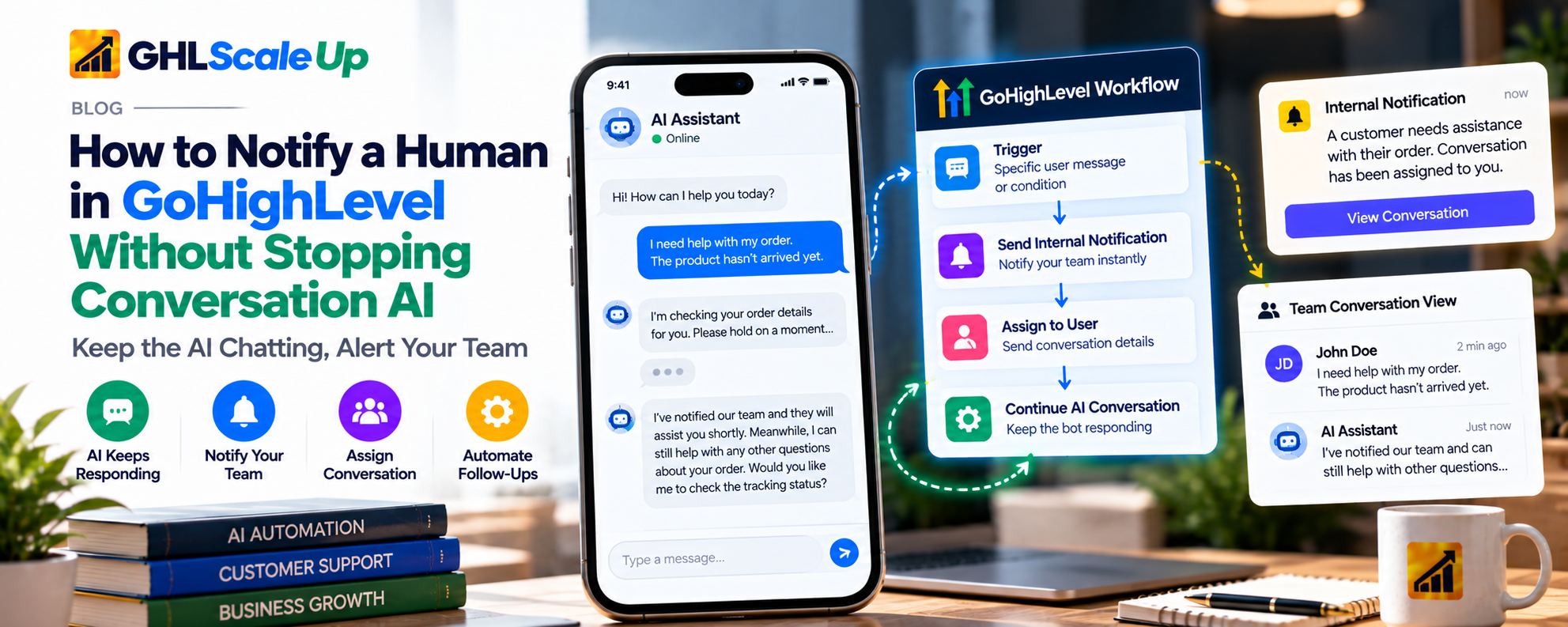
Can You Notify a Human Without Stopping Conversation AI?
| Question | Answer | Label |
|---|---|---|
| Can a notification be set up separately from Human Handover? | Yes. Trigger a Workflow and Email Notification Settings are separate actions from Human Handover | Documented |
| Can a workflow started by the bot notify staff, assign, create a task or tag? | Workflows can contain those actions. That a bot-triggered workflow can contain them is consistent with the documentation, but the actions' official pages were not reviewed for this article | Configuration-dependent |
| Does the bot keep replying after Trigger a Workflow runs? | The documentation does not say | Unverified |
| Does a staff-only internal notification put the bot to sleep? | Not documented. The sleep settings describe messages sent as workflow messages; whether an internal notification counts is unknown | Unverified |
| Does a message the workflow sends to the customer put the bot to sleep? | It can, if the Workflow Message sleep setting is on | Documented, configuration-dependent |
| Can the bot's status be checked? | Yes, from the conversation composer icon and audit logs | Documented |
So the direct answer is: yes, you can separate the alert from the handover, and the workflow route is the most promising design. Whether the AI keeps answering afterward is something to confirm in your own account, using the method below. We do not recommend labeling any setup 'always keeps the bot running' until you have seen it in a live conversation.
Human Handover vs. Workflow Notification in GoHighLevel
These are notification, assignment, handover and bot status. They are related but separate controls.
| Configuration or Action | What It Is For | Effect on the Bot | What to Verify |
|---|---|---|---|
| Native Human Handover | Escalate a conversation for human intervention | Documented: includes a configurable pause. Flow Builder: bot stops | How long the pause lasts and what happens when it ends |
| Trigger a Workflow | Start a published workflow when a plain-language condition occurs | Not documented | Whether the bot replies to the next message after the workflow runs |
| Email Notification Settings | Alert staff when the agent cannot answer or a conversation needs review | Not documented as pausing | Which conditions send the alert; whether it covers your cases |
| Conversation assignment | Route the conversation to a staff member | Handover can assign. Whether assignment alone changes bot behavior is not documented | Bot status before and after assignment |
| Bot status controls | Decide whether the bot may reply to a contact | Directly controls replies: Active, Inactive, Sleep | Whether a staff reply, a workflow message or a handover changed the status |
Use notification alone when the bot can still give useful, accurate answers while a person prepares to respond. Use handover when a person must take over (see the last section before the FAQ).
How to Notify a Human Using a GoHighLevel Workflow
These steps follow the documented requirement that the workflow exists and is published before the bot can use it. Action names and layouts in the workflow builder can differ by account, so confirm each action in your builder.
Phase 1: Decide What Should Happen
Write down, before touching any settings:
- Which questions the AI should answer on its own (services, hours, general information).
- Which requests should alert a person (custom arrangements, pricing decisions, a request for a specific person).
- Which situations need a real handover instead (a complaint, a sensitive issue, anything the AI could answer wrongly).
- What details must be collected first (name, email, phone, service requirements).
- Who gets the alert, and what they should do when it arrives.
- What happens once a person starts replying: does the bot step back?
These decisions matter because the platform treats an alert, an assignment and a handover differently. If the last question has no answer, you may end up with a person and the bot both replying.
Phase 2: Prepare the Bot
Open the bot (AI Agents `>` Conversation AI, then the bot) and review its Bot Goals, instructions and knowledge. Instruct the bot to:
- Answer only from approved business information, and say so when it does not know.
- Collect the details you need naturally, without re-asking for what is already on the contact record.
- Recognize the situations that need a person.
- Tell the customer that the team has been asked to follow up, not that someone has read the message or will reply by a specific time, unless your process guarantees that.
A prompt cannot override the platform's pause, sleep or stop controls. It can only change what the bot says.
Phase 3: Build the Notification Workflow
- In the correct sub-account, create a new workflow and name it clearly, for example 'Conversation AI: team follow-up needed'.
- Choose a start that does not duplicate the bot action. The documentation warns that attaching the bot action to a workflow that already runs from the same trigger will make it run twice. The simplest option is to leave the workflow without its own trigger conditions and let the Trigger a Workflow action start it (confirm your builder allows this).
- Add the internal actions you need. Standard options include a staff or internal notification, assigning the contact or conversation to a user, a task, and a tag (for example 'needs-human-review'). Confirm each in your builder.
- Put the contact's name, phone, email and the service they asked about in the notification body, using the builder's merge fields. The Trigger a Workflow article does not say what conversation data a bot-triggered workflow receives, so do not assume the question text is available. Check what appears in the execution log.
- Add a guard against repeat runs. Use a tag condition (skip if the contact already has the tag) or check the workflow's re-entry setting; see workflow re-entry.
- Do NOT add: a message to the contact (it may count as a workflow message and put the bot to sleep), the 'Update Conversation AI Bot and Status' action set to Inactive, or any handover or stop action.
- Publish the workflow. The bot can only select published workflows.
- Run the workflow once against a test contact and read its execution history. See enrollment history and execution logs for how to read it.
Staff Notification Settings
The Human Handover article says staff must turn on 'When a conversation gets assigned to me' and 'When a task gets assigned to me' under Settings `>` My Staff `>` Edit `>` Notification Settings. That is documented for handover. If your workflow assigns a conversation or creates a task, check the same settings, and test, because the article does not say they govern workflow actions too.
How to Connect the Workflow to Conversation AI
Documented (Trigger a Workflow within Conversation AI, modified 3 June 2025; Bot Goals configuration, modified 4 June 2026):
- Open the bot and go to the Bot Goals tab. Bot Goals apply to the one bot you selected.
- Under the actions, click Trigger a workflow. If the bot is new, give it a name first.
- Enter an Action Name, so you can recognize the action later.
- In Select a published workflow to trigger, choose the workflow from Phase 3.
- In When to trigger a workflow, describe the condition in plain language.
- Click Save. Unsaved changes may be lost if you leave the page.
A good condition is specific. For example: 'The contact asks to speak with a team member, asks for a custom or non-standard arrangement, or asks for a pricing or contract decision that needs team review.' Do not treat this as an exact phrase. The documentation says the AI recognizes the condition from the description and that triggering is not guaranteed, so wording matters and testing is the only check.
Three cautions from the documentation:
- The condition can be met by the bot's or the contact's messages, so a bot reply that mentions the topic could fire it.
- If another action uses a similar trigger, such as a contact-information action, the AI decides which action runs. Keep conditions distinct.
- The article for this action is the oldest source (June 2025). Compare it with what you see on screen.
If you use Flow Builder, note that the Flow Builder guide lists Human Handover as a condition and describes the Conversation AI workflow action in the other direction (workflows calling a bot). It does not list Trigger a Workflow. Whether your Flow Builder bot supports it is unverified.
How to Check Whether Conversation AI Is Still Active
Check the Status
Documented: open the contact's conversation in Conversations. The Conversation AI status icon sits in the message composer. Click it to see or change the status: Active (replies or suggests replies), Inactive (off until someone reactivates it) or Sleep/Snooze (paused, optionally until a set time). The icon is available only when the bot is in Suggestive or Auto-Pilot mode. If it is missing, confirm Conversation AI is enabled for the sub-account, a bot is assigned to the channel, and the bot is in one of those modes.
Check What Changed It
Documented: open Audit logs at the bottom of the Contact Details panel to see when a status changed and what caused it. Sub-account-wide, go to Settings `>` Audit Logs and filter the Module to Conversation AI Activity.
Things That Can Change the Status
- A staff reply, if sleep settings pause the bot after manual messages.
- A message sent by a workflow, if sleep settings pause the bot after workflow messages.
- An opt-out keyword such as STOP from the contact.
- Reaching the maximum bot messages for the conversation (1 to 100, default 100 for new bots).
- A handover with Bot Pause Behaviour.
- A workflow action that updates the bot status.
A contact-level Inactive status overrides global settings until someone sets it back to Active, and bulk updates are not supported for this control; use workflows for large-scale changes.
Example: Notify a Human While the AI Continues Answering
A business has a bot that explains services, collects name, email, phone and requirements, and flags prospects who need a detailed discussion. The table shows what the setup is meant to do and what has to be confirmed. This sequence has not been tested. Treat the right-hand column as your test script, not as a result.
| Step | What Should Happen | What to Confirm |
|---|---|---|
| Customer: 'Can you explain what services you offer?' | The bot answers from approved information | Answer matches your knowledge base |
| Customer: 'Can someone from your team discuss a custom arrangement with me?' | The bot acknowledges the request. The condition in Trigger a Workflow is recognized | Workflow ran once (execution log). Bot reply does not claim a person has already replied |
| Internal action | The designated person receives the notification, task and tag, with the contact's details | Right person, right contact, enough context |
| Customer: 'Also, what are your usual business hours?' | If the bot is still Active, it answers | Status icon still Active. Audit log shows no change. The reply is accurate, not invented |
| Staff member replies | Depends on your sleep settings | Whether the bot sleeps after a manual message. Decide which you want |
If the bot does not answer the hours question, the documented causes to check are in the troubleshooting table: a workflow message that triggered sleep, a handover scenario that also fired, or a status change. The closest alternative then is to turn off the workflow's customer-facing message, or to accept a handover and pause for this scenario.
The point of the example is the difference it shows. In step two a person is told. In none of the steps was the conversation transferred.
Phase 5: Verify That the Bot Keeps Responding
This is the step that decides whether the setup works. Run it in a real, supported channel on a test contact, not in the workflow builder alone.
- Start a new conversation with a test contact on the channel you use (for example SMS or web chat).
- Ask a question the bot should answer. Confirm it replies.
- Send the message that should trigger the workflow.
- Open the workflow's execution history. Confirm it ran once, for the right contact, without errors.
- Confirm the right staff member received the notification and that it has enough context.
- Open the contact's conversation and check the bot status icon. It should still read Active.
- Open Audit logs for the contact. Confirm no unexpected status change was recorded.
- Send a second question the bot should answer, such as business hours. Confirm it replies with an accurate answer and does not invent one.
- Have a staff member reply manually. Check whether the status changes, and decide whether that matches what you want.
- If you also use Human Handover for other scenarios, trigger one and confirm the bot pauses as you intend and resumes (or not) as designed.
Repeat step 3 to 8 after any change to the prompt, the workflow, the Bot Goals or the sleep settings.
Troubleshooting GoHighLevel Conversation AI Human Handover
Causes are listed from most to least likely where the documentation supports a ranking. Several symptoms have more than one cause, so use the diagnostic column to tell them apart.
| Symptom | Likely Causes | Where to Look | Diagnostic and Fix |
|---|---|---|---|
| The human receives no notification | The workflow never ran; staff notification preferences are off; the notification action has no recipient | Workflow execution history; Settings > My Staff > Notification Settings | Check whether the run exists. If yes, check the recipient and preferences. Confirm the settings apply to workflow assignments (documented for handover only) |
| The workflow does not trigger | Condition too vague or not met; workflow unpublished; another action took the condition; bot in the wrong mode | Bot Goals > Trigger a workflow; published status | Publish the workflow, tighten the condition, test with a direct request. Triggering is not guaranteed by the documentation, so keep an email notification as a backstop |
| The workflow triggers, but the bot stops | The workflow sends a message to the contact and Workflow Message sleep is on; a handover scenario also fired; a workflow action set the bot Inactive; message limit reached | Audit logs; workflow actions; sleep settings; Human Handover scenarios | Read the audit log entry to see the cause. Remove customer messages and status actions from the workflow, or turn off the Workflow Message sleep setting. Whether a staff-only notification counts is unverified, so test it by removing actions one at a time |
| The bot continues, but the human lacks context | The workflow receives limited data; notification body only uses basic fields | Execution log inputs; notification text | Use contact fields the bot populates (Contact Info with Update Contact Field), and enable Conversation Summary if you use it. Do not assume the question text is passed |
| Duplicate notifications | The same trigger fires in Workflow Automation and in Bot Goals; the condition matches repeatedly; re-entry allowed | Workflow trigger; execution history; re-entry setting | Remove the duplicate trigger. Add a tag check at the start. See workflow re-entry |
| The bot keeps responding after a human takes control | Staff reply sleep disabled; mode is Auto-Pilot; handover not used | Sleep settings (Manual Message); status icon | If a person must own the case, use a real handover or set the status to Inactive or Sleep for that contact |
| A manual staff reply changes the bot's status | Manual Message sleep is on | Audit logs; sleep settings | Documented behavior. Decide whether you want it. If not, adjust the setting. The changelog does not give its location |
| The bot resumes only after a pause or sleep period | Bot Pause Behaviour timer or 'Reactive bot after' duration | Handover pause fields; status icon | Set the pause intentionally. Behavior at timer expiry is only partly documented, so test the resume |
| The bot catches a direct request for a human but misses other cases | The condition describes only the explicit request | Trigger a workflow condition; handover scenarios | Add separate conditions for each case (pricing decision, custom arrangement) and consider Lack of Information with notification only if you accept its pause |
| Works in testing, differs in the live channel | Different channel or bot enabled; test panel behaves differently; mode differences | Channel settings; bot assigned to channel | Test on the real channel with a real contact. The Advanced Settings article lets you enable or disable the bot per channel |
When Should You Use Human Handover Instead?
Continuing the AI is not always right. These are decision principles, not rules.
| Use notification without handover when | Use a true handover when |
|---|---|
| A customer wants more business information | The customer expects a person to take over |
| A person needs to review a lead while the AI answers routine questions | The issue cannot be resolved safely or accurately by the AI |
| The AI can still give accurate answers within its scope | A complaint or sensitive issue needs judgment |
| No person has taken responsibility for replying yet | You need to prevent the AI contradicting a representative who is handling the case |
A notification does not mean anyone has read or answered the message. Do not let the bot or any automated message say otherwise.
Conclusion
Alerting a person and handing over a conversation are different controls in GoHighLevel. For the alert, use Trigger a Workflow with a published workflow containing only internal actions, add Email Notification Settings as a backstop, and keep Human Handover for conversations a person must own. The one thing the documentation cannot tell you is whether your bot keeps replying afterward, so run the Phase 5 test before you rely on it.
If you want help designing or testing this, GHL Scale Up builds Conversation AI and workflow automation setups. You can read about our AI chatbot service or get in touch. For the bigger picture of what GoHighLevel's AI features do, see our GoHighLevel AI Employee guide.
Official documentation: Human Handover Action, Trigger a Workflow within Conversation AI, Configure Bot Goals, Bot Status for Individual Contacts and Flow Builder setup.
Frequently Asked Questions
Can GoHighLevel notify a human without stopping Conversation AI?
You can set up a notification separately from Human Handover. Whether the bot keeps replying afterward is not stated in the documentation we read, so test it in your account.
Does the Human Handover action pause the bot?
Documented: it includes a Bot Pause Behaviour timer in days, hours and minutes. Whether a zero or empty value works is not stated.
What is the difference between Human Handover and Trigger a Workflow?
Human Handover moves a conversation to a person and can pause the bot. Trigger a Workflow runs a published workflow when a condition is recognized, and the documentation does not say it pauses the bot.
Can a workflow notify a team member when a customer asks for a human?
A workflow started from Bot Goals can contain internal actions, but the AI must recognize your condition, and triggering is not guaranteed. Test it and keep a backup alert.
Can Conversation AI keep answering after a workflow is triggered?
Possibly. It depends on what the workflow does and your sleep settings. A message sent to the contact by the workflow can put the bot to sleep if that setting is on.
Why does my AI bot stop responding after a staff member replies?
If sleep after a manual message is enabled, a staff reply pauses the bot. Check the contact's audit log and your sleep settings.
How can I tell whether Conversation AI is active, paused or inactive?
Click the status icon in the conversation composer: Active, Inactive or Sleep/Snooze. The icon only appears in Suggestive or Auto-Pilot mode.
Can I notify a human when the AI does not know the answer?
Yes, in two ways: Email Notification Settings in Bot Goals, or the Human Handover scenario Lack of Information. The second includes the pause.
How do I prevent duplicate human notifications?
Do not attach a workflow to the bot if it already runs from the same trigger. Add a tag check at the start and review its re-entry setting.
When should I pause Conversation AI instead of letting it continue?
When a person must take over, when the issue is sensitive, or when a conflicting AI answer would cause harm.
Related Articles in This Series
Need Help With Conversation AI Setup?
We help businesses build Conversation AI and workflow automation setups that actually work.
Book Your Free Assessment
GHL Scale Up is a specialised GoHighLevel implementation and SaaS growth agency. Based in India, we serve agencies and businesses across 6 countries with 200+ GoHighLevel builds delivered. This guide reflects direct experience building Conversation AI and workflow automation setups. All product details verified against HighLevel documentation as of October 2026.
ghlscaleup.com